
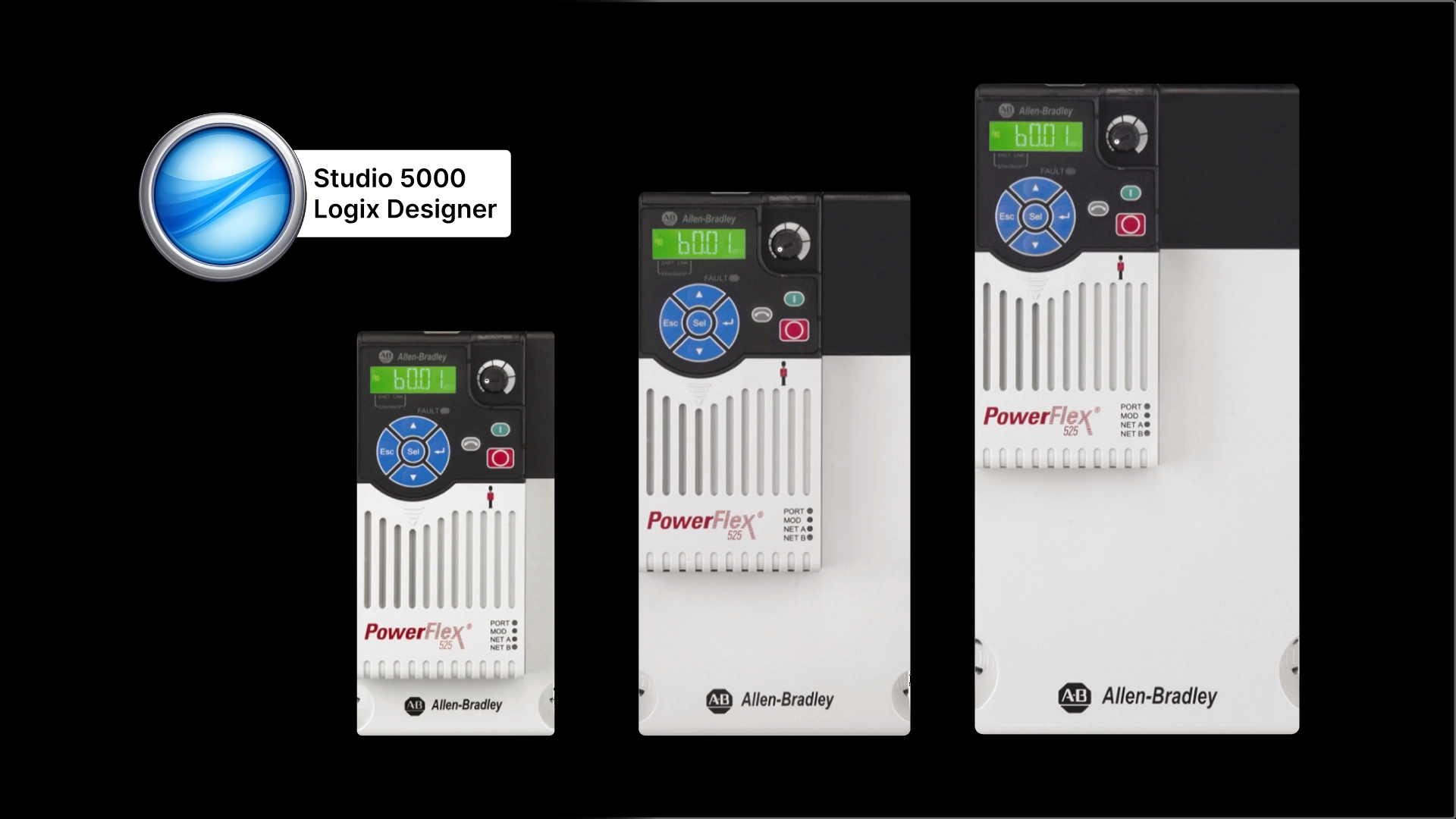
Allen Bradley PowerFlex 525 drives are popular low-voltage variable frequency drives manufactured by Rockwell Automation.
In a previous article, I explained you how to configure a PowerFlex 525 drive in Studio 5000 Logix Designer.
In this article, I’ll show you how to integrate a PowerFlex drive into an application. We’ll do this using Rockwell Automation’s Device Object Libraries. Device Object Libraries are libraries made up of PLC code and HMI faceplates that are built, tested, and maintained by Rockwell Automation. These libraries are available to download for free from Rockwell Automation’s website and they can dramatically reduce the amount of time it takes to integrate Rockwell Automation projects into a control system.
Update configuration
On my computer, I have downloaded Rockwell Automation’s Power Device Object Library, which contains the content for PowerFlex 525 drives.
In Studio 5000, the first thing that I have to do is update the drive’s configuration to use the connection format that is specified in the Power Device Object Library’s documentation.
To do that, I right-click on the drive in the the Studio 5000 Logix Designer project and select Properties to open the Drive Overview.
In the Drive Overview, I click on Device Definition to open the Device Definition dialog.
In the Device Definition dialog, I open the Connection Format page by selecting Connection Format in the left pane.
On this page, I can configure what information is exchanged between the drive and PLC. To add additional parameters, I can click in the Parameter field and select the required parameter
In this case, I have added the required parameters that are specified in the Power Device Object Library documentation, as shown here.
After adding the parameters, I click OK to store the configuration and click Yes to confirm that I want to change the Module Definition.

I have already downloaded these changes to the drive so I click OK again to close Drive Overview dialog.
Now that the drive is configured properly, we can import the code that will let us interface with the drive.
PLC code
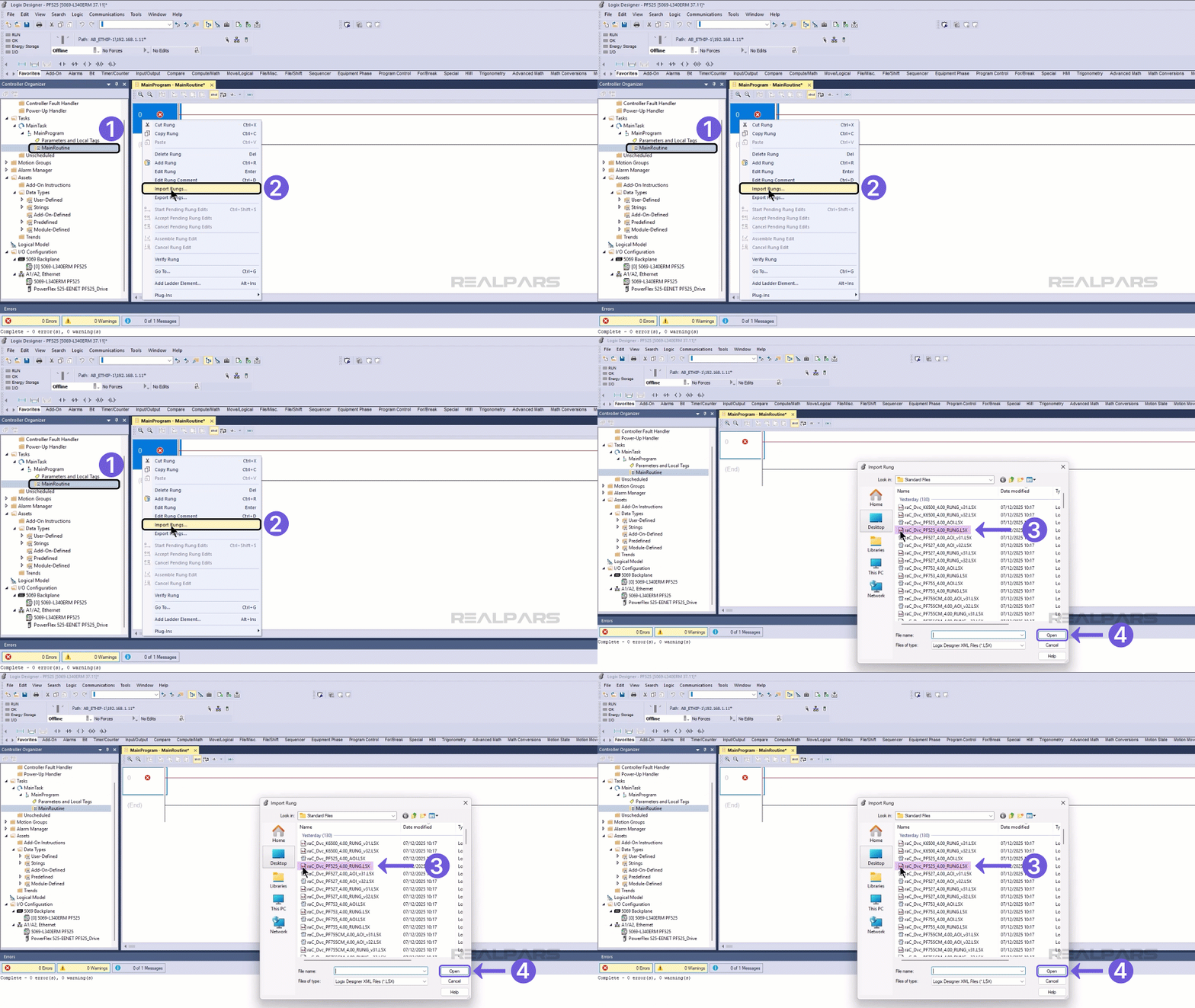
In the Studio 5000 project, I open the main routine, right-click on the first rung, and select Import Rungs.
In the file browser dialog that opens, I navigate to the Power Device Object library folder on my computer and select the raC_Dvc_PF525_4.00_RUNG file which contains the logic to interface with a PowerFlex 525 drive.
After selecting the correct file, I click Open to import the file
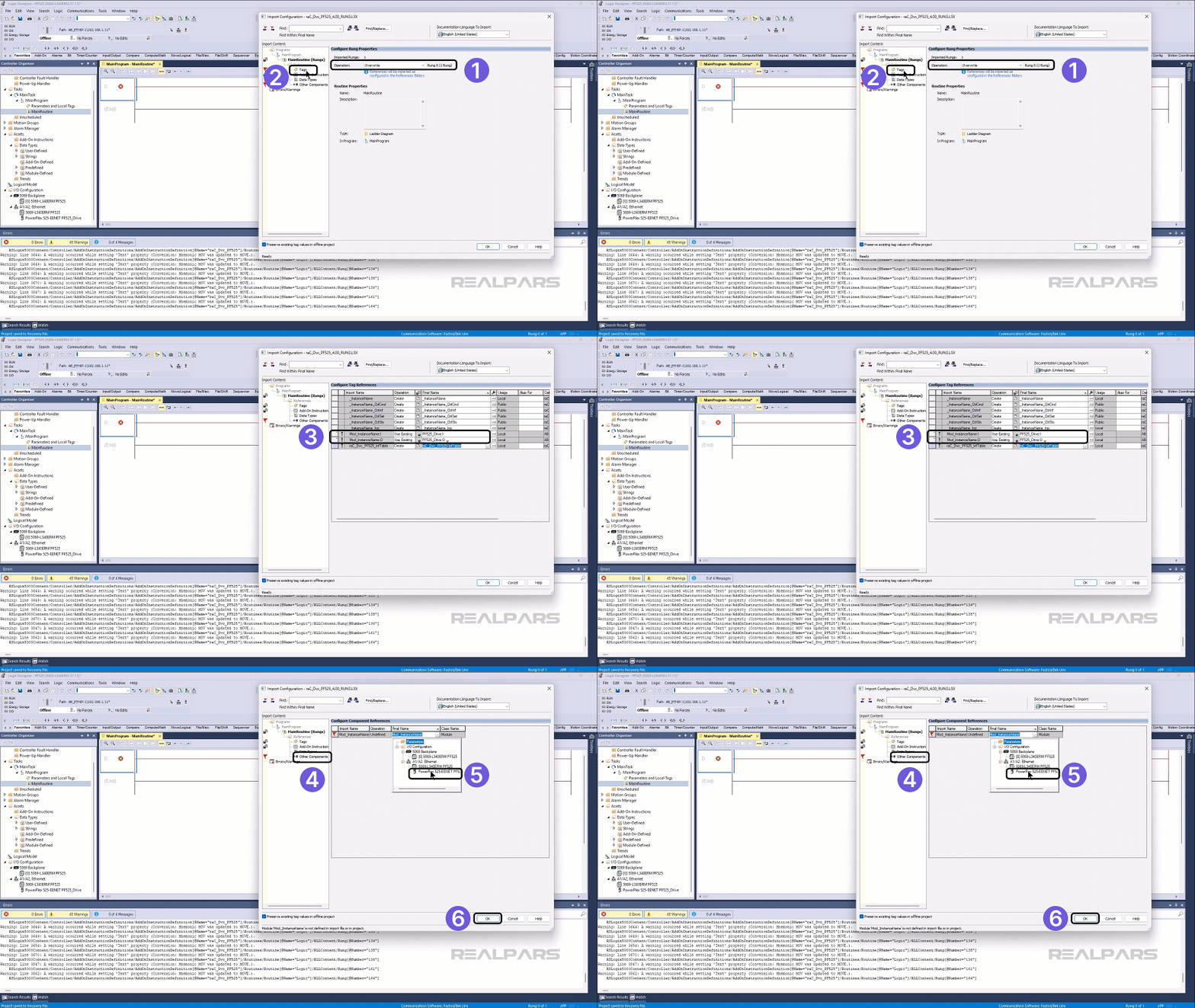
The Import Configuration dialog opens
In this dialog, I select Overwrite in the Operation drop down. This tells Studio 5000 Logix Designer to overwrite the existing rung in the routine when importing the new rung.
Then I open the tags page.
On this page I can see two warnings. I clear these warnings by updating the Final Name column to match the drive in our project. To do that, I use the dropdown to set the reference to the PF525_Drive drive that is in the project
We could also use the find and replace button to update the name of the tags that will be created from “_InstanceName” to something more specific but in this demo, I’ll leave the tag names as they are
Next, I switch to the Other Components page and set the Final Name field to the PowerFlex 525 drive that we want to control.
Finally, I click OK to finish importing the rung.
The logic and all of the required components and tags are imported.
We could now write some custom logic to interface with the drive using the AOI but for this demo, I will show you how you can control the drive by editing the values of Controller Tags directly in the Tags Editor.
Before we can see how the Device Object Libraries work, we’ll have to download the updated project to the PLC.
Download and test
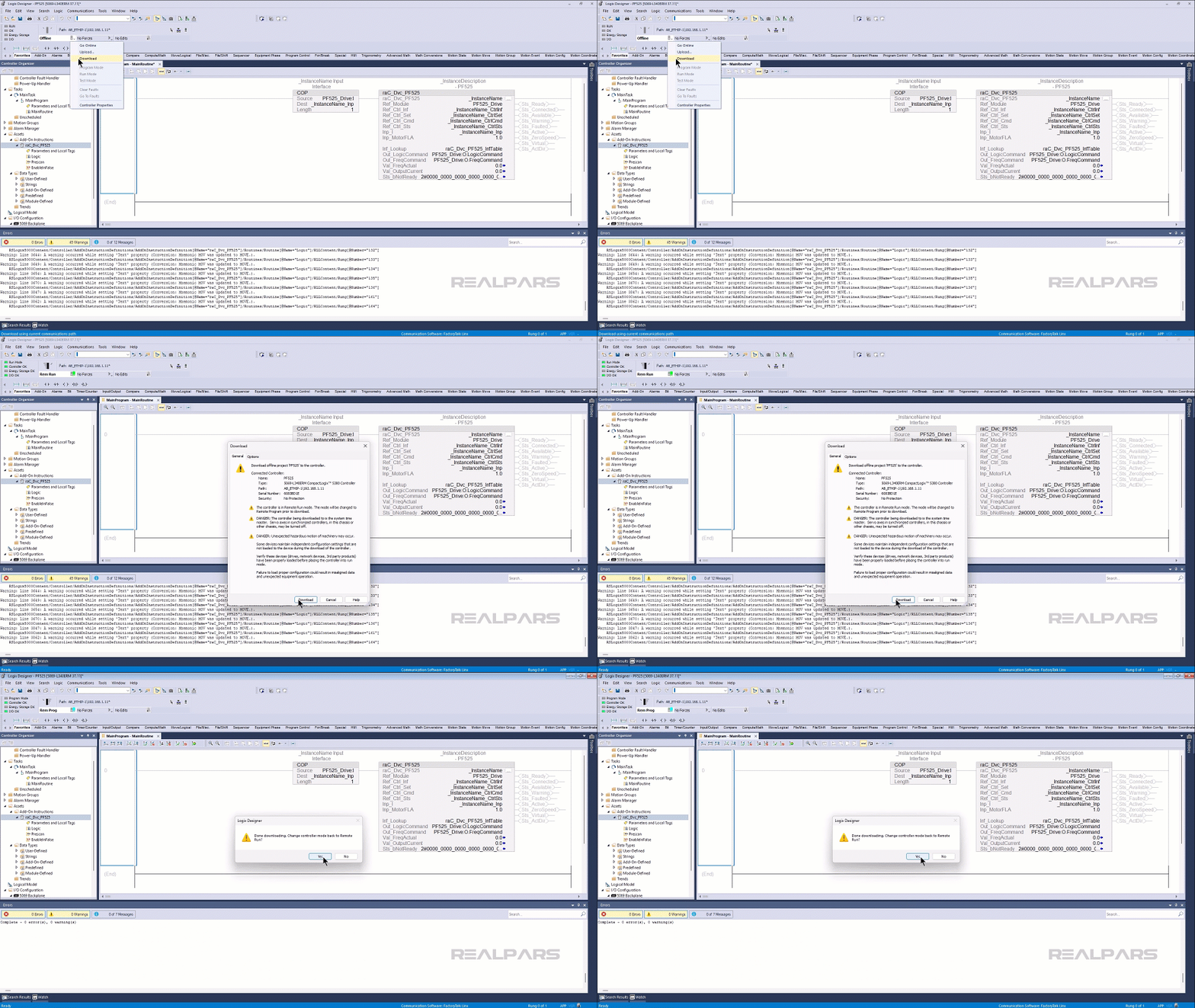
I downloaded the project by selecting download on the controller faceplate
In the dialog box, I select Download
When the download finishes, click Yes to put the controller back into Run mode.
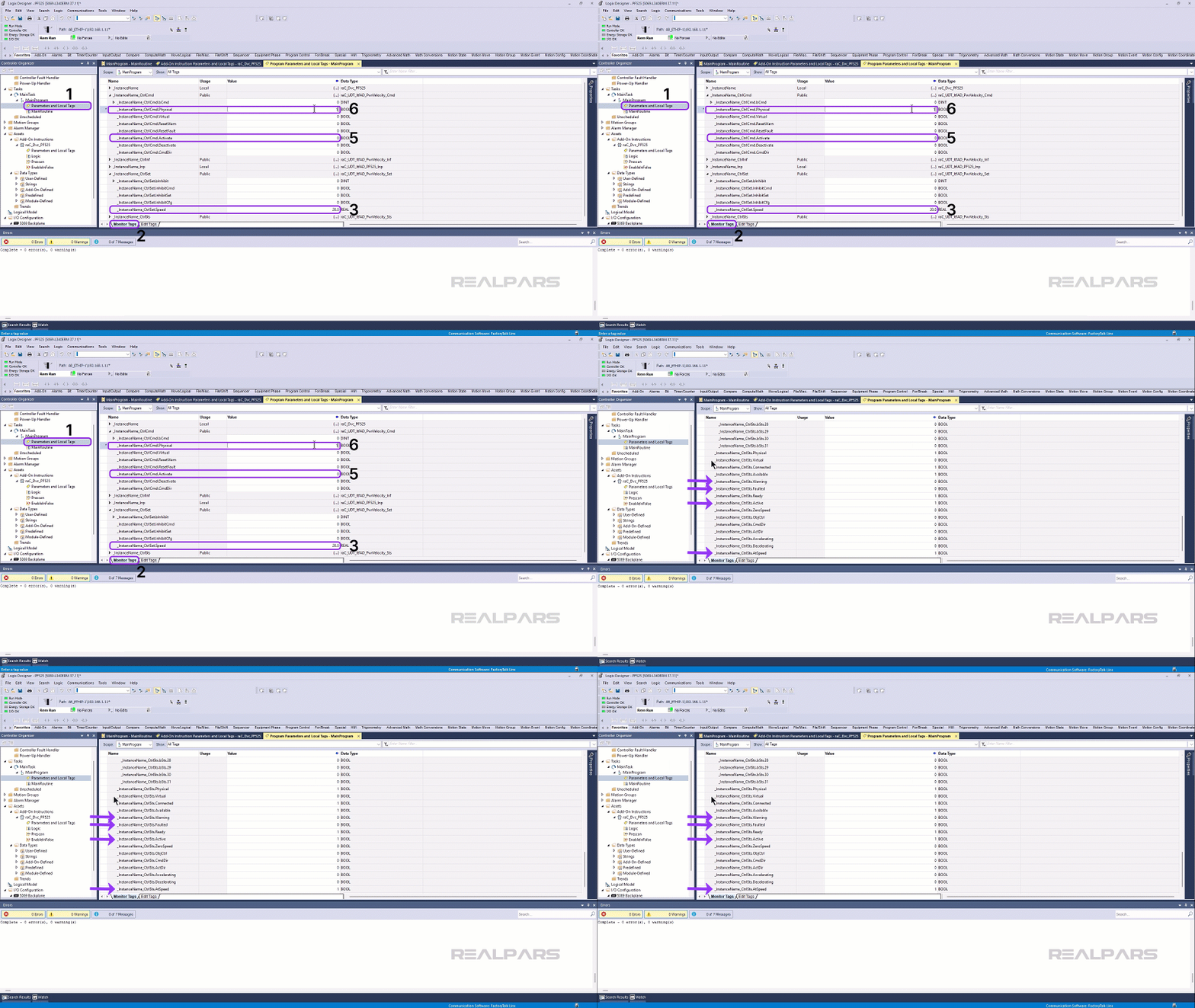
Now that the project is running in the controller, I open the Program Tags Editor by double clicking on Parameters and Local Tags in the Main Program folder of the Controller Organizer.
In the Tags Editor, I activate the Monitor Tags tab by clicking on it at the bottom of the editor.
Now I can configure the drive by expanding the Setting UDT. In this UDT I verify that all of the inhibit bits have a value of 0 and set the reference speed to 20.0.
Next, I expand the Command UDT and set the Physical parameter to 1 to indicate that I’m using a physical drive and set the Activate bit to 1 to start running the drive.
The drive begins to run and will remain running until I make the Deactivate bit 1.
I can also scroll down to see the status of the drive. In this case, I can see that the drive is active and at speed
If the drive had any faults or warnings, I would see them here as well.
Conclusion
In this article, we saw how to use the Power Device Object Library to quickly and easily integrate a PowerFlex 525 drive into a Studio 5000 Logix Designer project. Using device object libraries, you can add pre-tested code into your project to reduce engineering time.
Device Object Libraries also include faceplates that let you integrate a drive into a HMI application. I’ll show you how to use faceplates to integrate a PowerFlex drive into a HMI project in a future article.

