
%20(1).jpg)
Rockwell Automation has just released a set of free command-line tools, called VCS Custom Tools, that let you use Git with Studio 5000 Logix Designer for version control. In this article, I’ll show you how you can use these tools to implement a reliable version control system for your Logix Designer projects for free.
Rockwell Automation’s VCS custom tools
A Studio 5000 Logix Designer project is stored on a computer as a single binary file with the extension .acd. Because projects are stored as a single binary file, they are self-contained, hard to corrupt, and easy to share.
Unfortunately, binary files are incompatible with text-based version control systems like Git.
Rockwell Automation’s VCS Custom Tools addresses this issue by converting those ACD files into text files that are compatible with Git. At a glance, Rockwell Automation’s VCS Custom Tools:
- Convert a binary ACD file into a human-readable L5X file,
- Explode the L5X file into smaller text files that are organized in folders,
- Commit exploded files to a Git repository
By using these tools, you can implement a very reliable and robust version control system for your Studio 5000 Logix Designer projects for free.
Before I show you how to use these tools, I want to explain this process in a bit more detail.
L5X files
The VCS Custom Tools work by converting a binary ACD file into an L5X file. If you aren’t familiar with them, L5X files are XML representations of a Logix Designer project or a component of a project. Unlike binary files, XML files contain human-readable content.
L5X files work better with Git because they are text files. Since they are text files, Git can show you exactly what has changed in the file and can automatically merge changes from different developers in the same file.
Explosion
The problem with working with L5X files is that they can be very large files, and the content within the file can move around.
To work around this issue, the VCS Custom Tools explode an L5X file into components. This explosion lets you work with smaller, well-organized files instead of one massive one, making it easier to see what has been modified at a glance.
Git
Finally, the VCS Custom Tools use Git to actually track changes and back up the project.
Git is a distributed version control system that’s widely used in traditional software development. By using Git, you can build a full history of every change ever made to a project, easily make backups of a project to a remote repository, and quickly restore a project to its previous state.
When working with Git, there are a few key terms that you need to know:
A Repository, or repo, is a smart folder that tracks changes to a project.
When you make changes to a project, you commit those changes to your local repository. A commit is a snapshot of your project at a specific point in time that can be restored later.
To back up your project, you can push your changes to a remote repository, which is usually hosted on GitHub.
If another developer makes changes to a project, you can pull those changes into your local repository.
Now that we understand how the VCS Custom Tools work, let’s see how to use them.
Set up your environment
To use the VCS Custom Tools, you will need to have Studio 5000 Logix Designer, the Studio 5000 Logix Designer SDK, and Git installed on your computer.
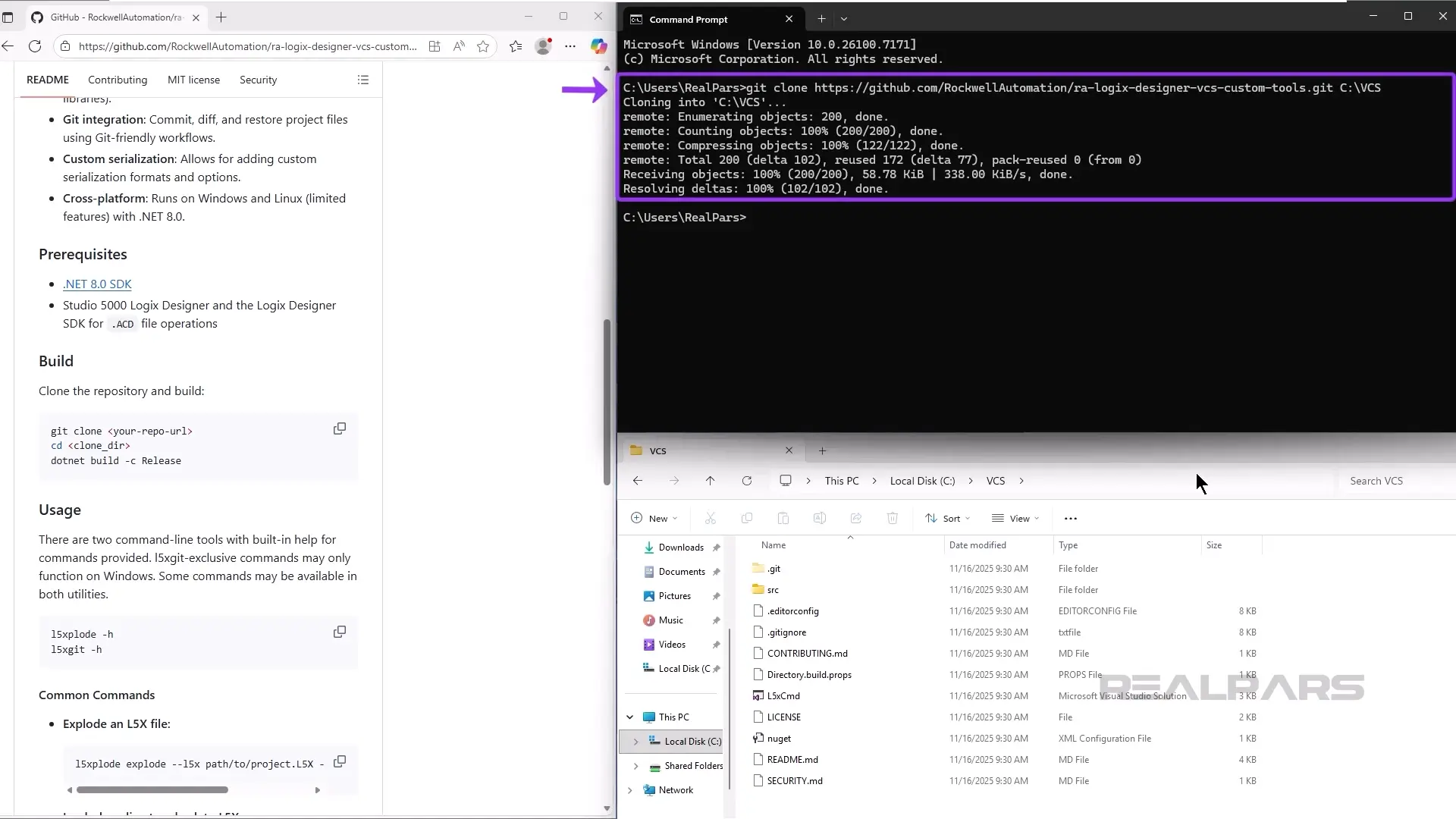
You will also need to clone the VCS Custom Tools repository to your computer and build the tools into an executable file. You can do that using the git clone command in a Command Prompt window as shown here.
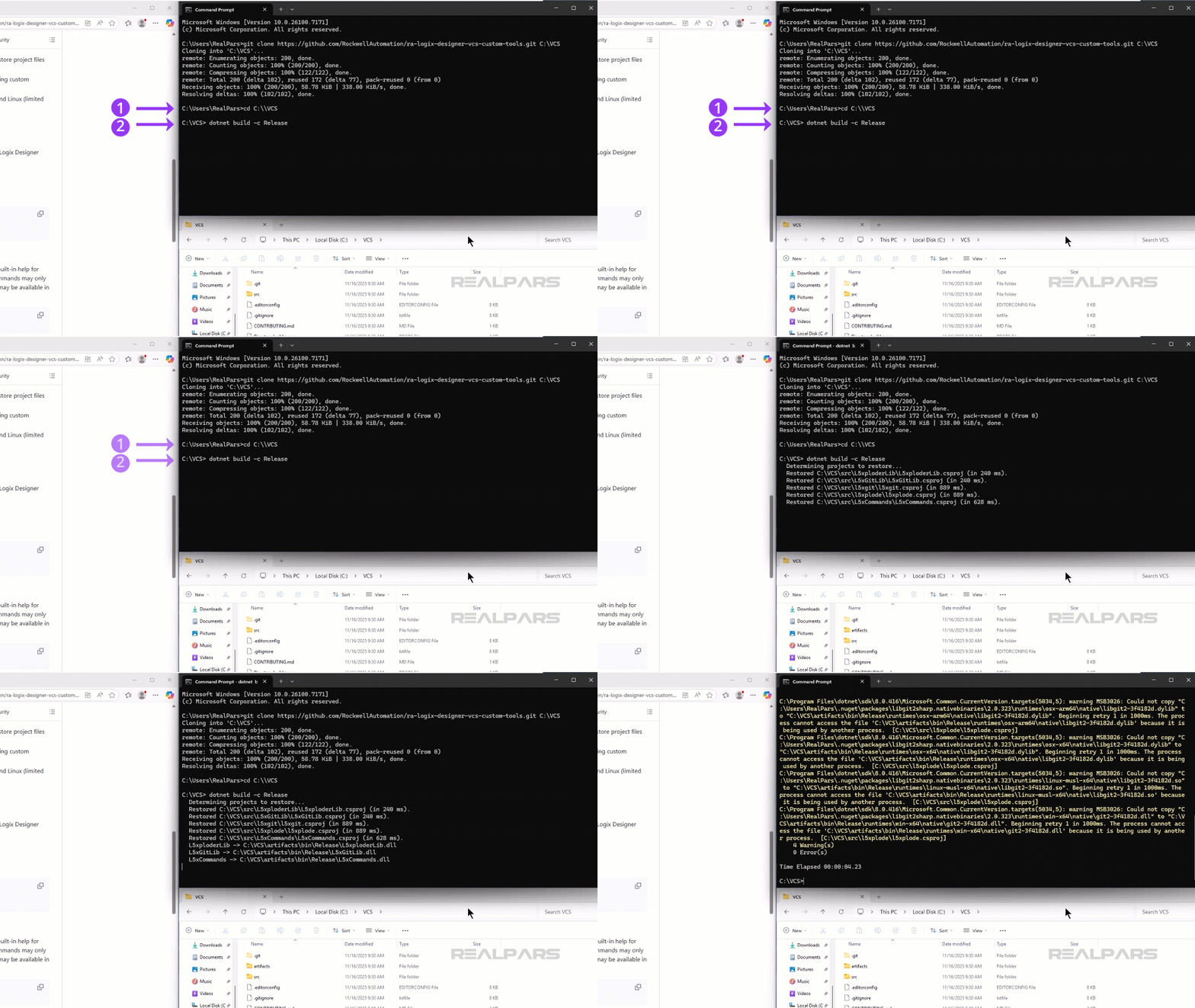
Once you have cloned the repository, you can build the tools by using the cd command to switch into the VCS folder and then running the build command.
Once the tools are built, we can use them with our projects.
Use the VCS custom tools
The first thing we have to do is set up a Git Repository for the Logix Designer project.
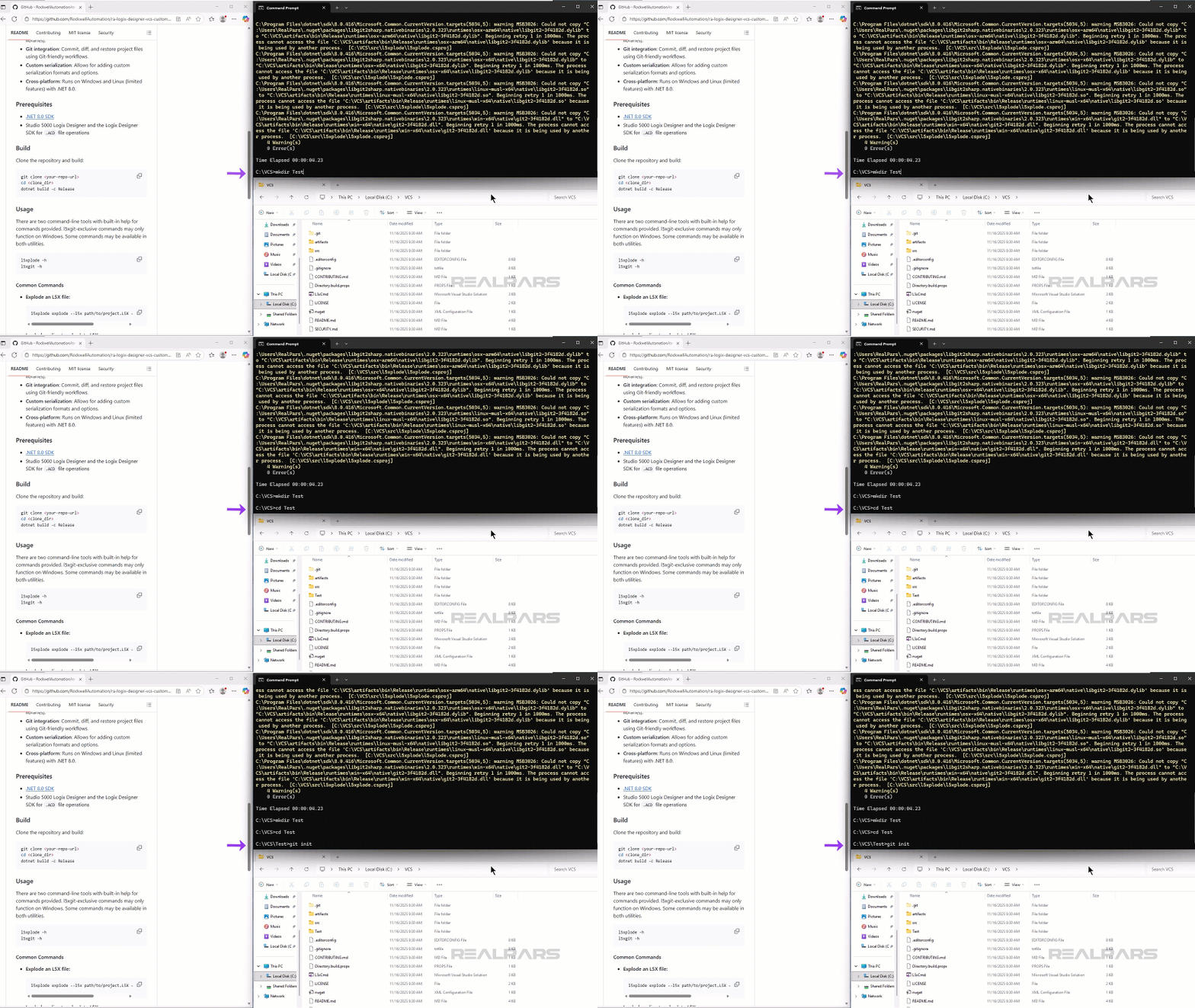
I can do that by creating a new folder using the make dir command, switching into the new folder using the cd command, and then initializing a Git repository by using the git init command.
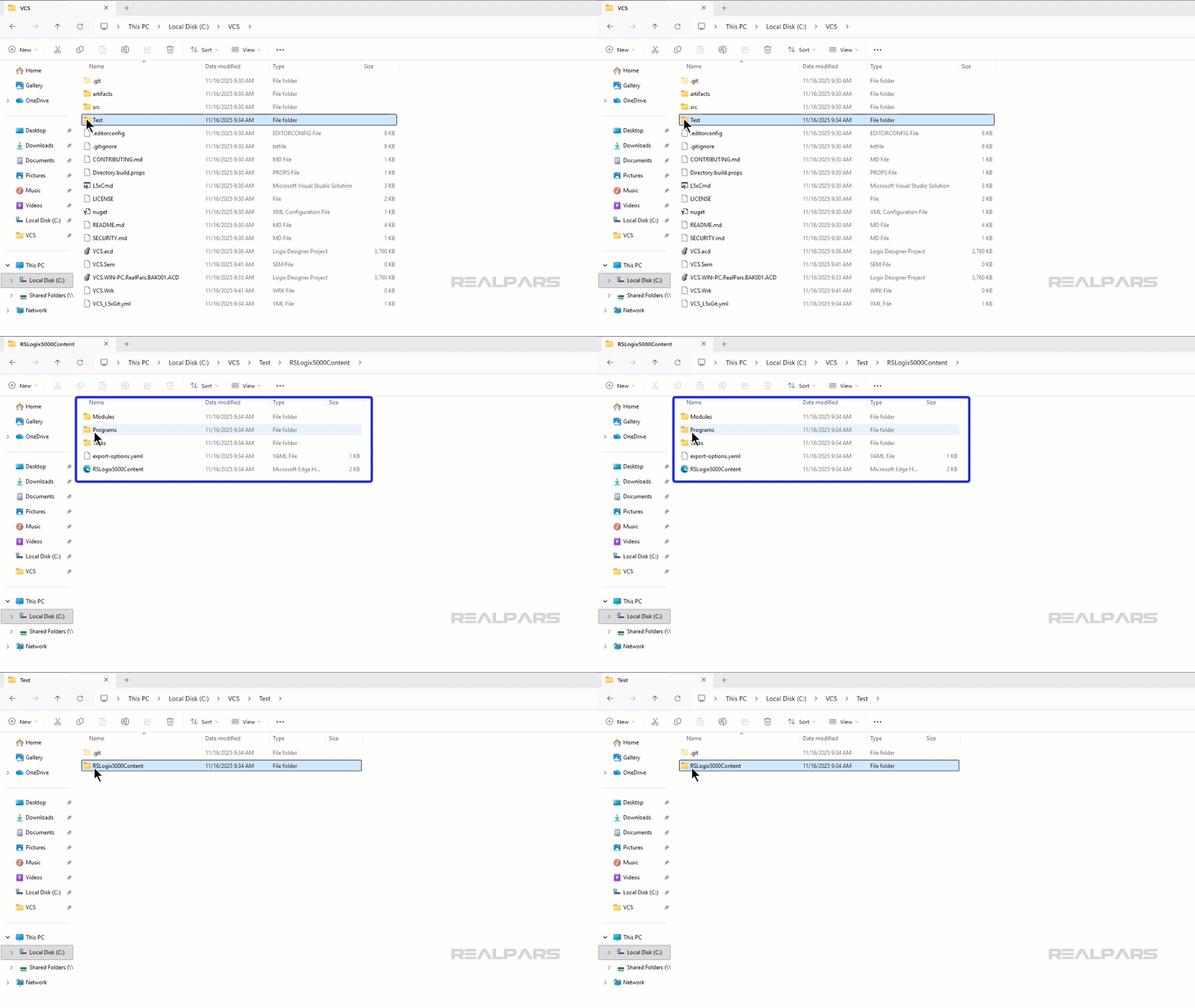
Once the repository is set up, you can commit changes to a Logix Designer project using the l5xgit commit command.
The first time you run this command, you will have to specify the location of the Git repository and whether a commit message is mandatory for each commit.
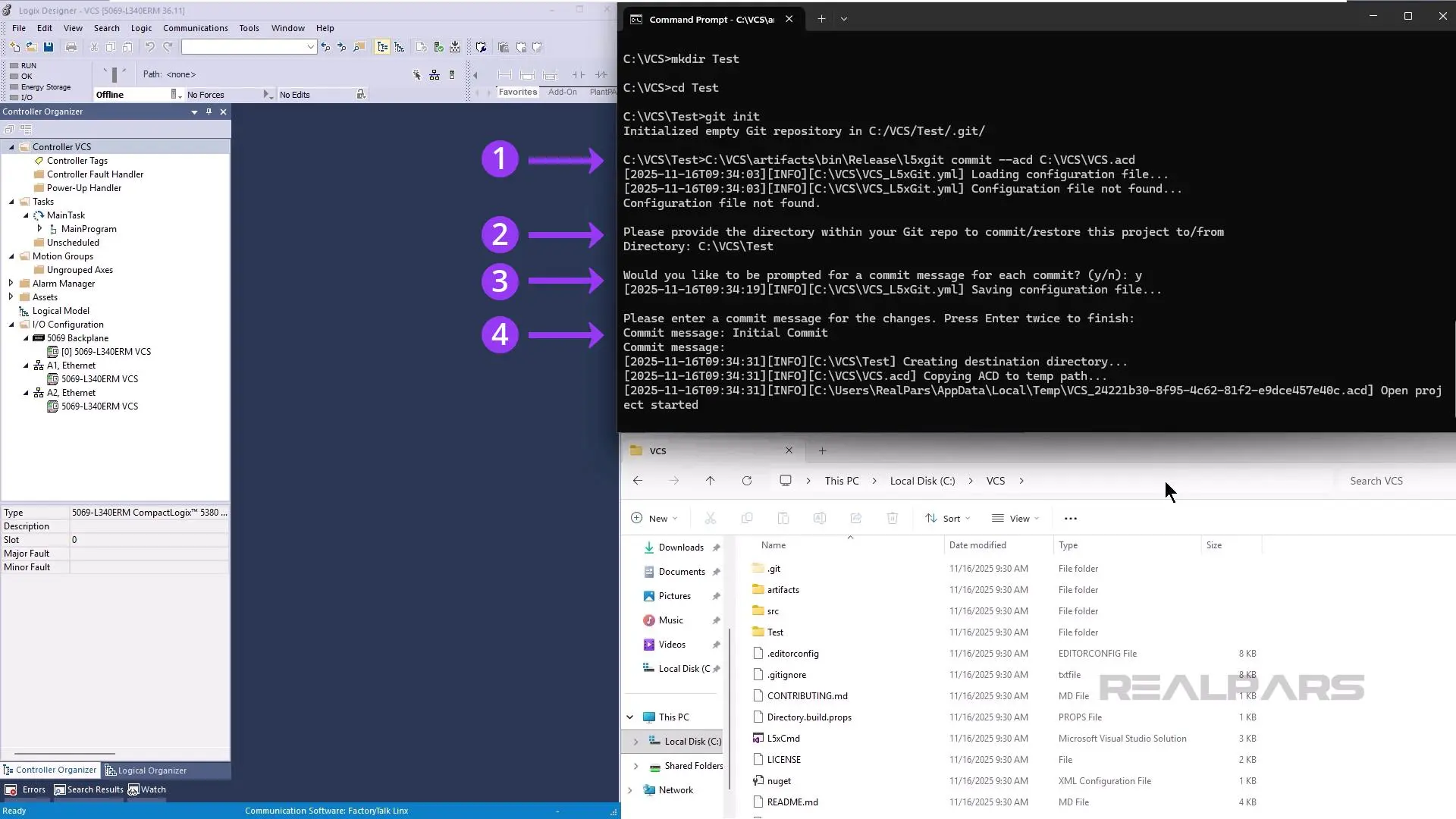
This command can take a long time to run. The good news is that it created a copy of the project so you can continue to work in your project while the VCS Custom Tools run in the background.
When the commit process is complete, you can see your exploded L5X file in your Git repository. If you wanted, you could push these changes to a remote repository to create an off-site backup of the project.
Restore a commit
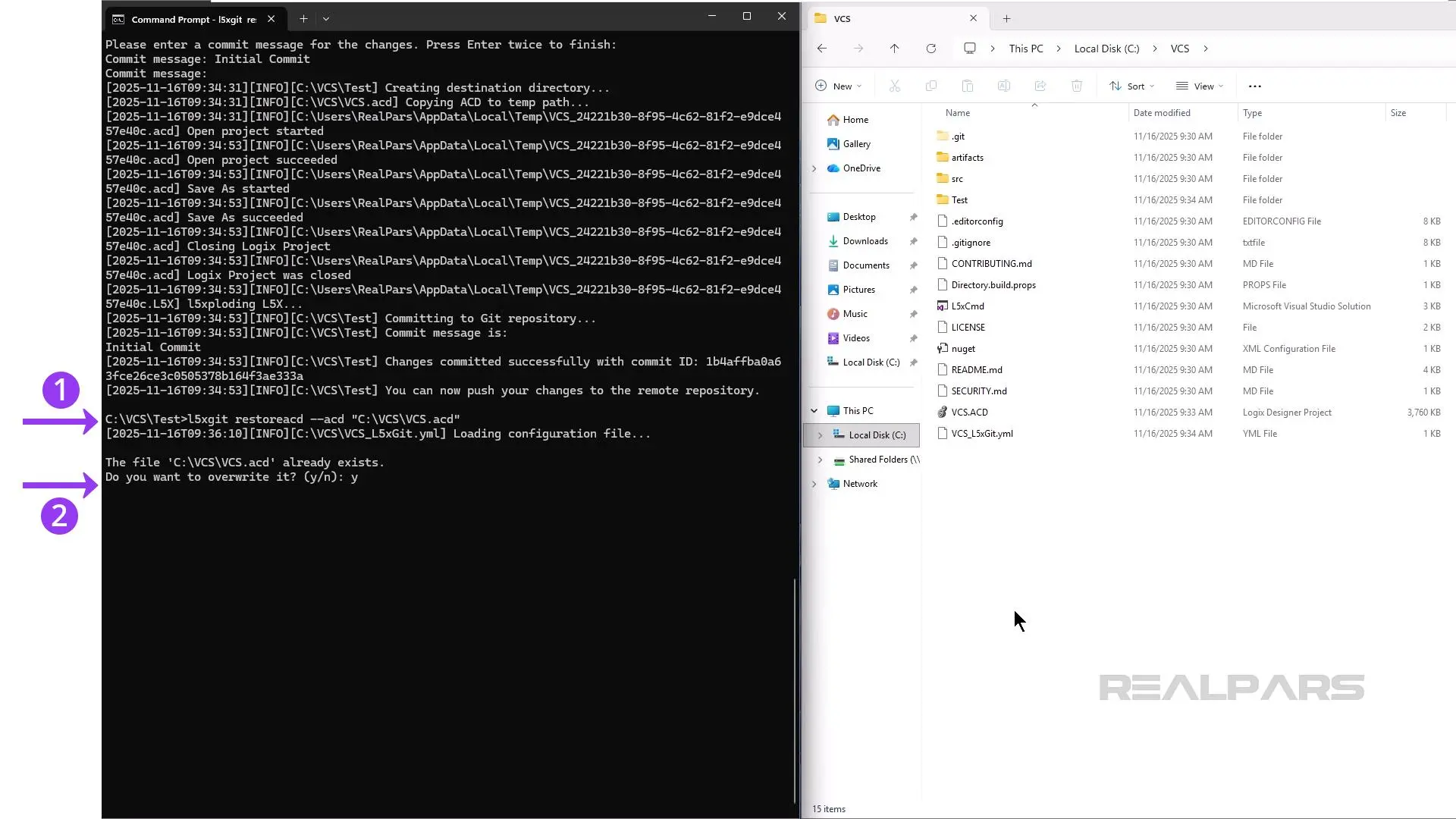
If needed, you can restore a project to the last commit by using the l5xgit restore command.
This command implodes your Git repository into an L5X file and then converts that L5X file back into an ACD file.
You will need to close the project in Studio 5000 Logix Designer for the restore command to work.
Studio 5000 Logix Designer integration
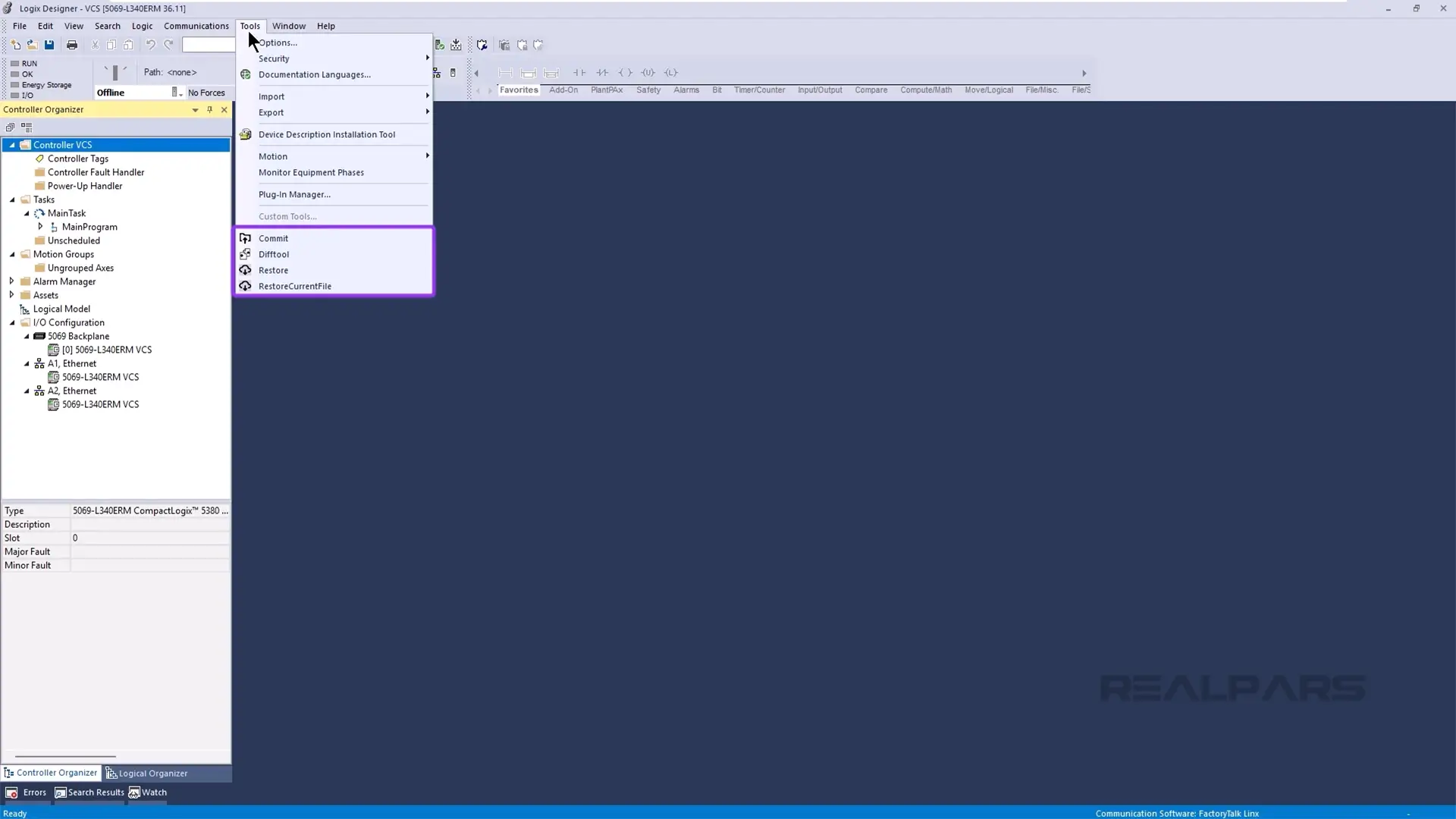
Finally, the VCS Custom Tools can be integrated into the UI of Studio 5000 Logix Designer using the Custom Tools menu.
To add the VCS Custom Tools to the Logix Designer UI, copy the CustomMenu.xml file from the VCS Custom Tools folder to the Common folder of the RSLogix 5000 installation as shown here.

When you restart Logix Designer, you will see that all of the VCS Custom Tools commands are now available in the Tools Menu of Logix Designer.
Wrap-Up
In this article, you have learned how to use Rockwell Automation’s Custom VCS Tools to implement a Git-based version control system for your projects.
By using Git, engineering teams can get a complete history of changes that have been made to a project, along with a solution for backing up and restoring PLC software using free tools.
Let us know in the comments what tools you use for version control on your projects.

