

FactoryTalk Design Studio is Rockwell Automation’s next-generation development environment for Logix 5000 control systems. Design Studio is a modern Integrated Development Environment that includes a lot of innovations that are not available in Studio 5000 Logix Designer.
One of the most interesting innovations in Design Studio is the fact that it has AI features built into it. Design Studio has an integrated Copilot, which is an AI assistant that can generate new code, explain existing code, interface with the version control system, and explain product features.
In this article, I’ll demonstrate the capabilities of FactoryTalk Design Studio’s Copilot using practical examples.
Before we look at the Copilot’s capabilities, I want to point out that FactoryTalk Design Studio’s Copilot is not a wrapper for ChatGPT or any other general-purpose Large Language Models.
It is a Small Language Model that is specifically built by Rockwell Automation for Design Studio and industrial automation. Since it is trained for one specific domain, the results of using the integrated Copilot should be better than using a general purpose LLM like ChatGPT.
Now that we know what FactoryTalk Design Studio’s Copilot is, let’s look at we can use it in our projects.
Product explanation
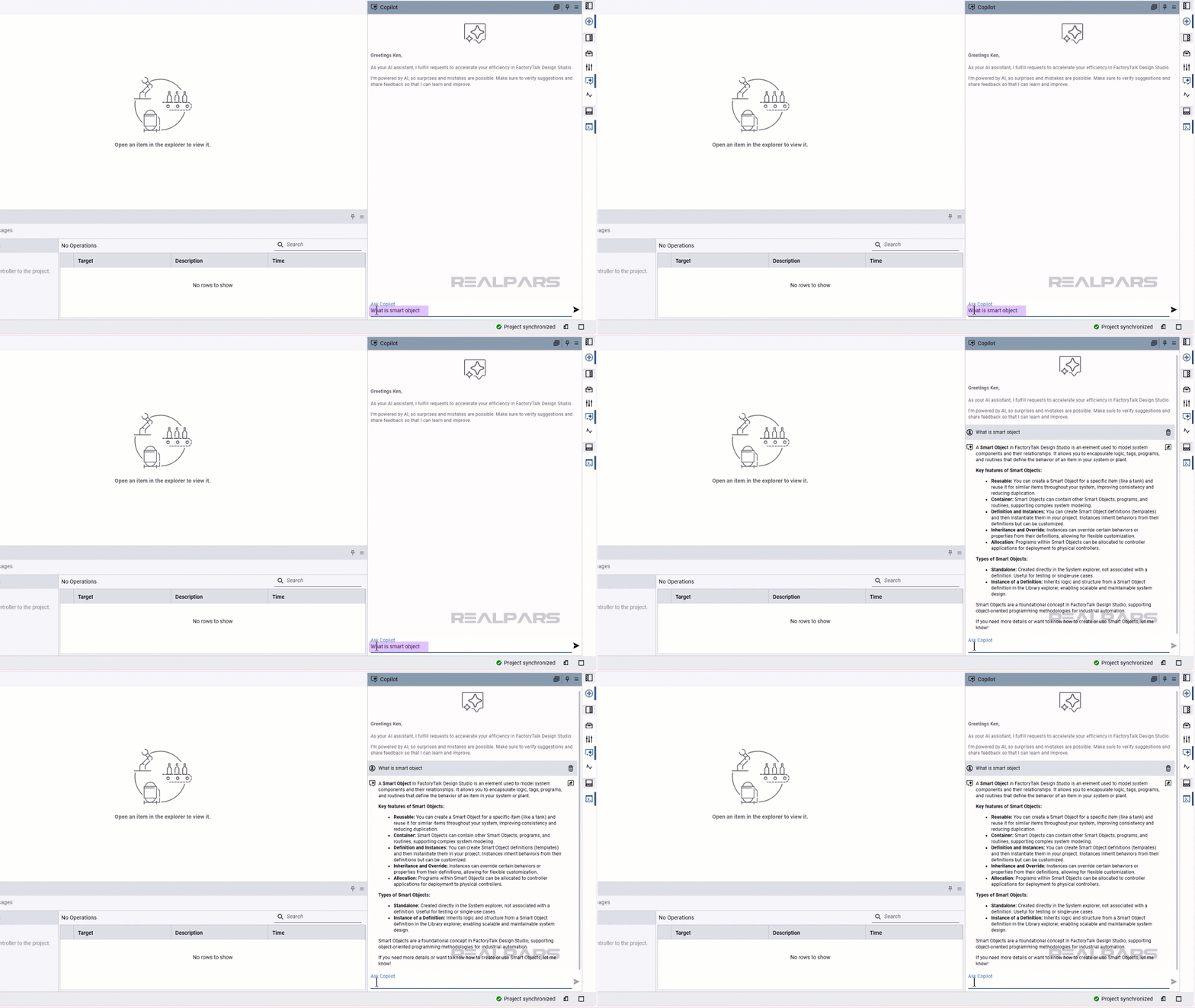
When you create a new project in FactoryTalk Design Studio, you are prompted to add a Smart Object to the project. Smart Objects are a new feature in FactoryTalk Design Studio that did not exist in Studio 5000 Logix Designer. If you wanted to know more about Smart Objects, you could search in the project documentation but you could also ask Copilot.

Here, I am giving Copilot the prompt “What is a Smart Object?”. Since Copilot is trained on the FactoryTalk Design Studio documentation, it can give me a detailed explanation of what Smart Objects are, what features they have, and what types of Smart Objects are available to use.
This feature makes it easy to use natural language to learn more about FactoryTalk Design Studio.
Code generation
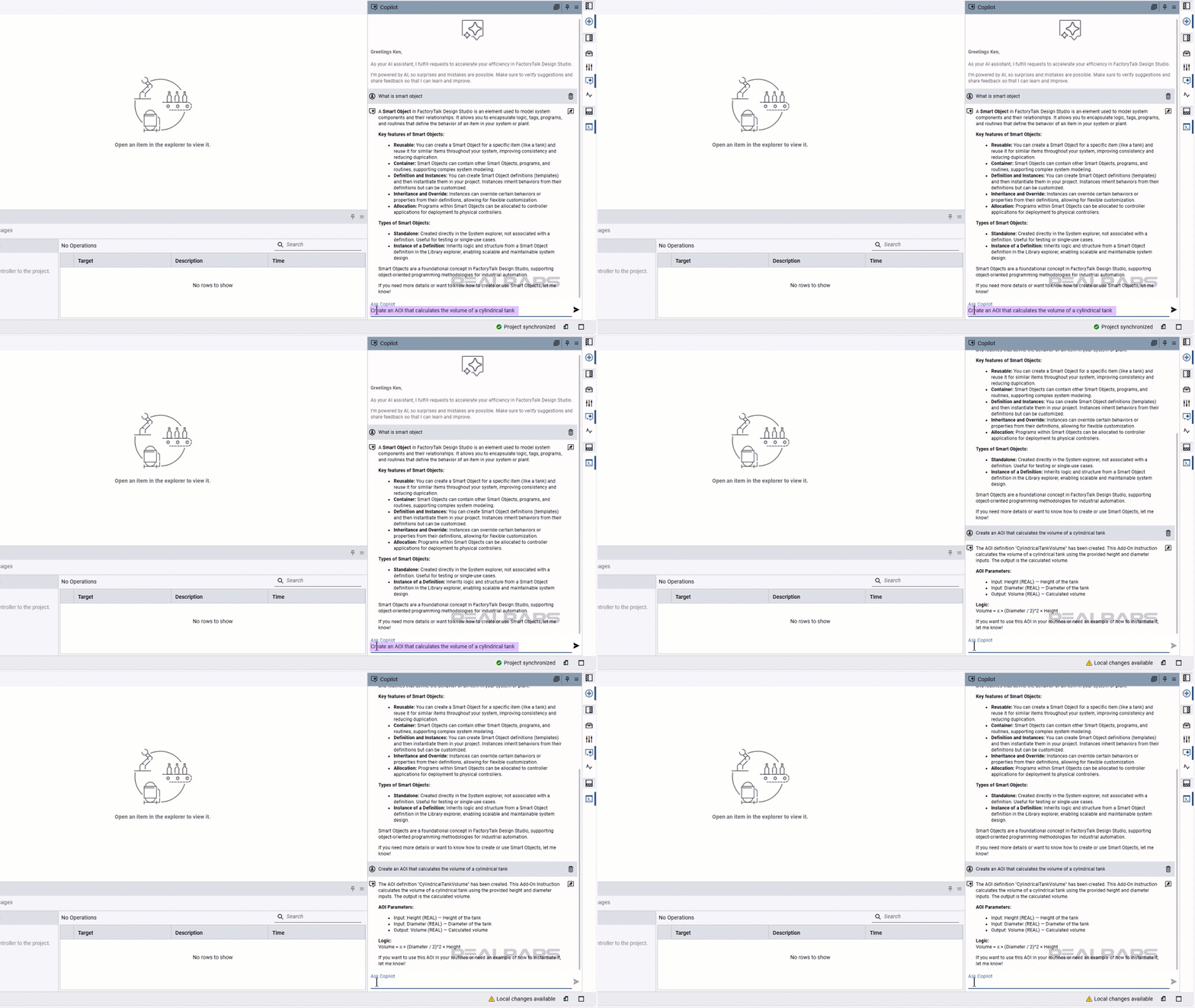
As well as explaining product features, Copilot can be used to generate code - you can simply tell Copilot what you want and it will go out and create it for you.
The really impressive part is that you don’t have to be very prescriptive about what you want. In this example, I’m giving Copilot the prompt “Create an AOI that calculates the volume of a cylindrical tank” and, after a short processing period, it generates the code.
As you can see from the description, it has added the required input and output parameters and used the correct formula for calculating the volume.
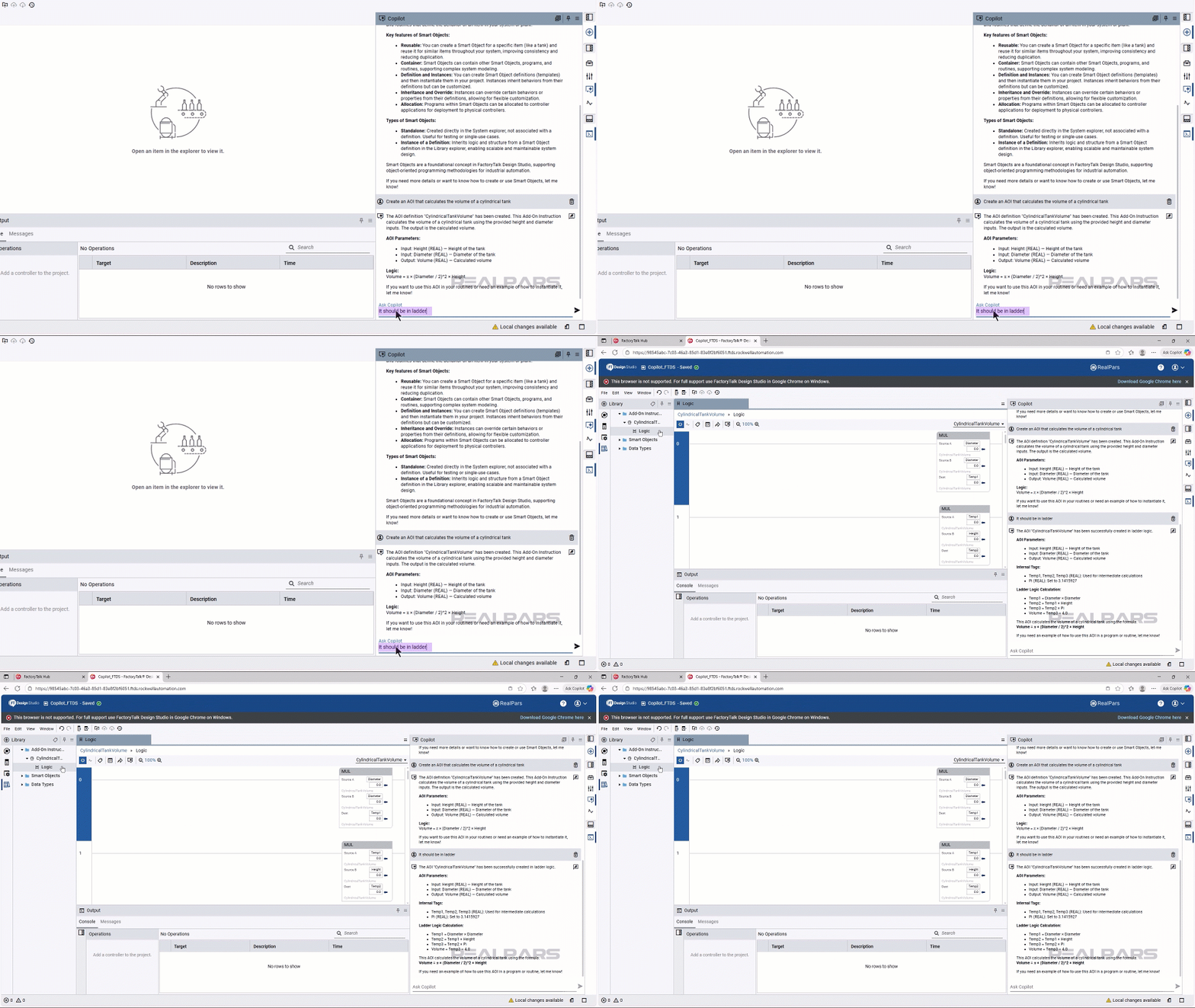
If I’m not perfectly happy with what Copilot has created, I can ask it to revise the code for me. Here, I’m specifying that the AOI should be created using the Ladder Diagram programming language, and Copilot converts the AOI without any issues.
Code explanation
Since Copilot understands code, it can be used to analyze and explain code. This feature is very useful for anyone who has inherited an older project that has poor documentation.
To demonstrate this feature, I have removed the documentation from the AOI that was previously created.

In the AOI, I can right-click on a rung to open an inline chat window with Copilot. In this chat window, I can ask Copilot to explain what the code is doing.
As you can see, Copilot has recognized that the formula is calculating the volume of a cylindrical tank and gives a breakdown of how the logic works.
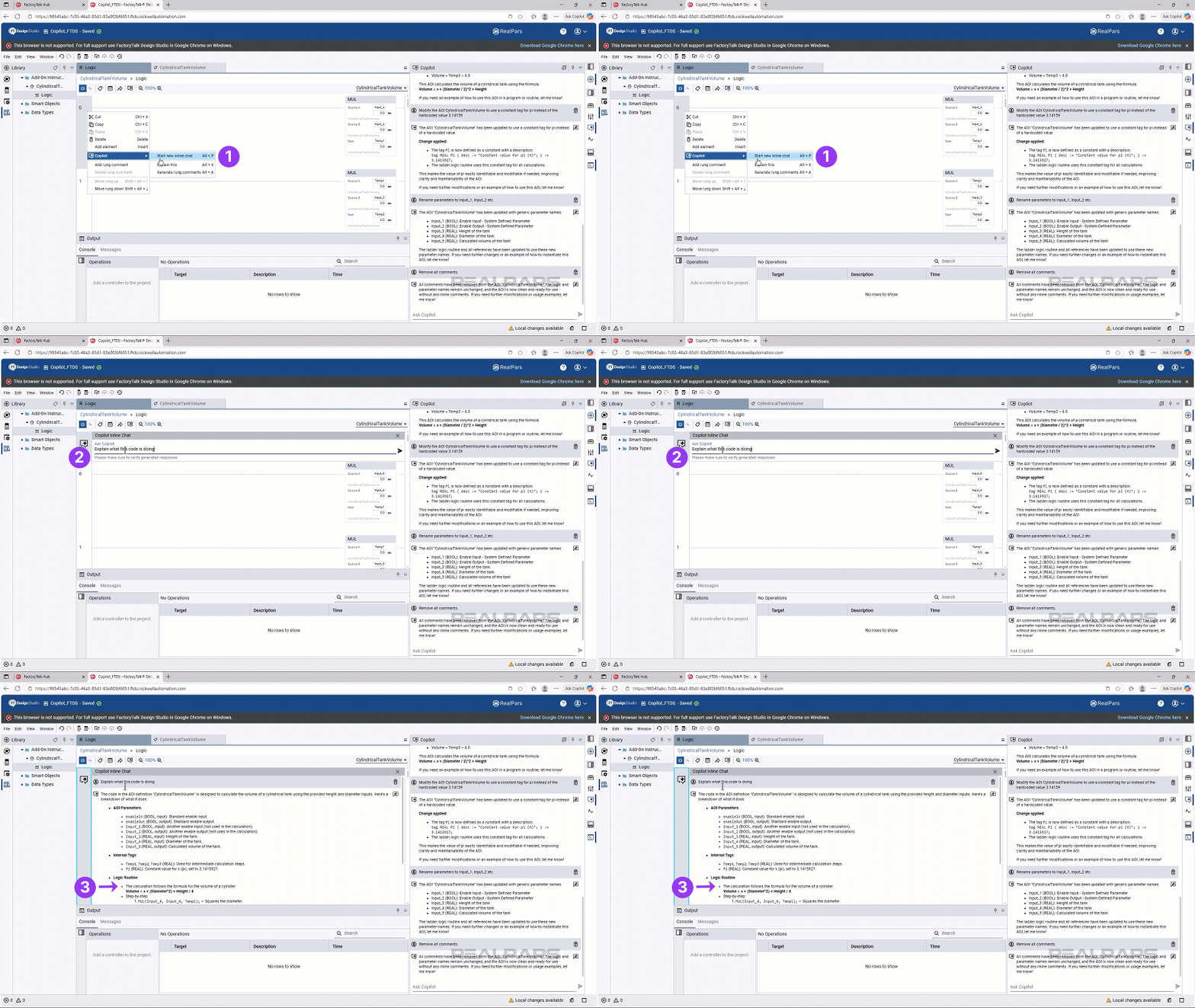
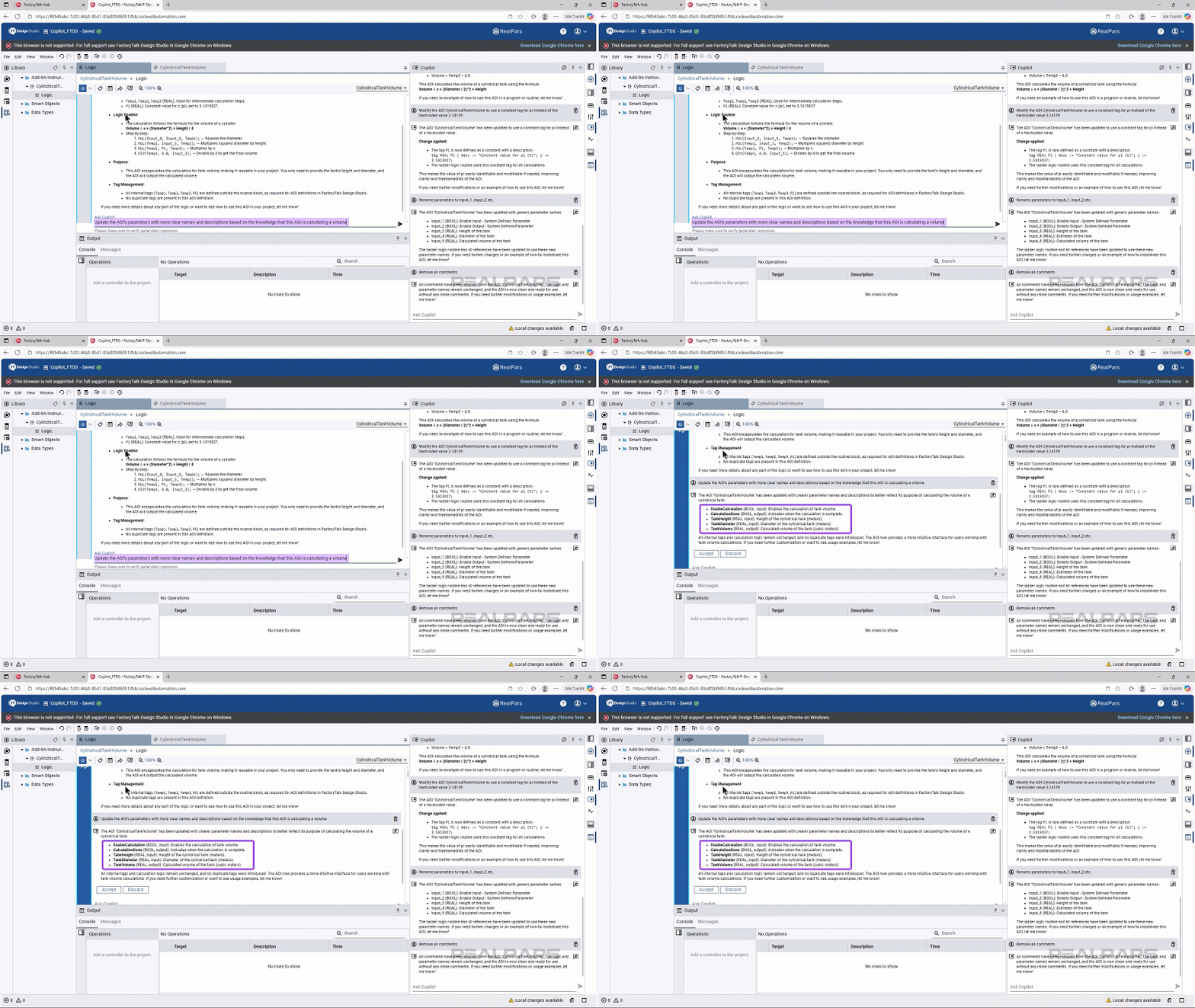
Now that I understand what this AOI does, I can ask Copilot to document the AOI based on its analysis. As you can see, Copilot has renamed the parameters of the AOI to make the interface more intuitive for someone who has to use it.
Version control command
Copilot can also be used to interface with the built-in version control system.
Here I am telling Copilot to commit the changes that have been made to the project to the local repository with the commit message initial commit.

Once Copilot confirms that the changes have been committed, I can tell Copilot to push the changes to the remote repository.
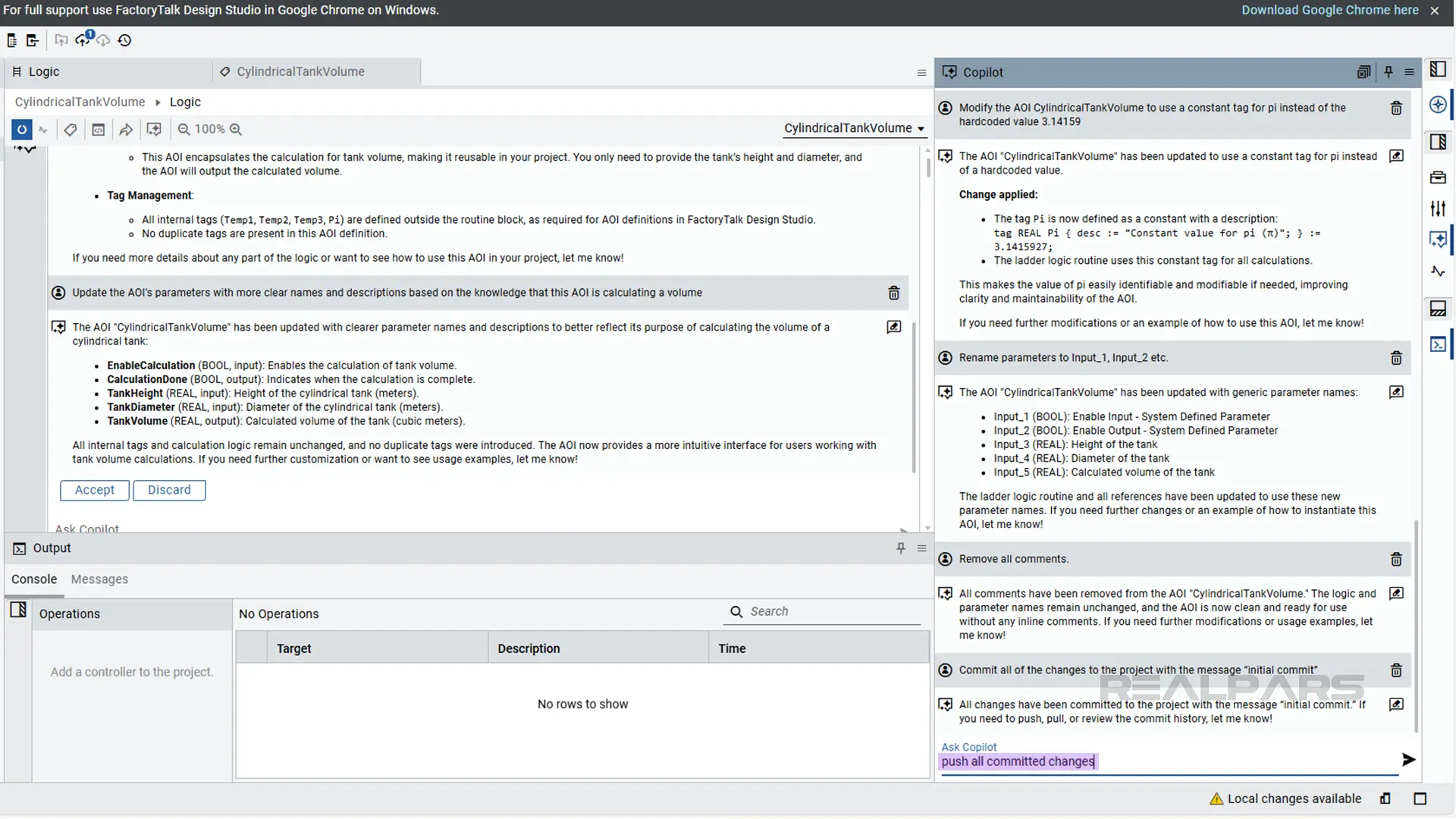
Once again, Copilot confirms that the command has been executed.
This feature is great for people who are used to working with Git in a terminal and don’t want to use the version control toolbar that is built into FactoryTalk Design Studio’s user interfacce.
Wrap-Up
FactoryTalk Design Studio has introduced a lot of innovations that are not available in Studio 5000 Logix Designer. In this article, you saw a demonstration of one of the most powerful new features available: the integrated Copilot. This integrated Copilot gives you an AI assistant that can be used to explain product features and code, generate new code based on requirements, and carry out commands in FactoryTalk Design Studio.
If you’re interested in trying FactoryTalk Design Studio’s AI capabilities for yourself, you can use the link to get a 90-day trial of FactoryTalk Design Studio.

