
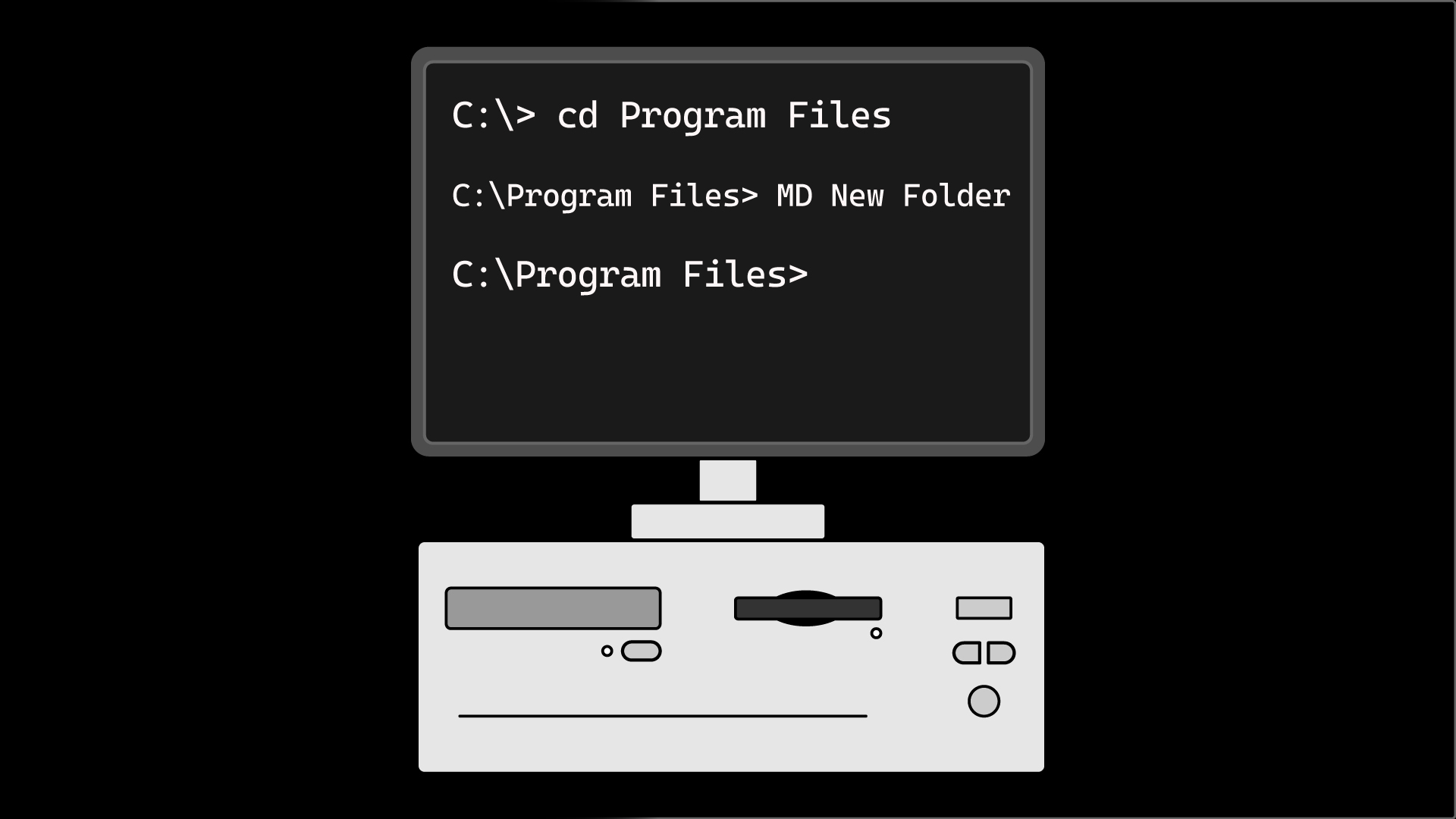
When the personal computer was introduced in the early 1980s, DOS was Boss. The first IBM personal computer had to be booted to start. When you powered the PC, an internal program called the BIOS (Basic Input/Output System) prepared the system to load an operating system.
Then came the fun part: a Disk Operating System (DOS) was installed from a floppy disk. This process was known as booting the computer.
Once DOS was installed into RAM (Random Access Memory), you were left with a blank screen showing a “A>” prompt, directing you to the “A” floppy drive. As time went on, hard drives made the DOS installation process simpler by directing you to the “C” drive with a “C>” prompt.
Originally, we had only text at startup! No graphics, no Windows, no mouse to help us navigate. Users had to enter precise text commands to instruct the computer. Installing programs, creating folders, and other tasks we now accomplish easily were tedious, as syntax errors were unforgiving.
We’re all used to Windows, the graphical interface that makes life so much easier. Now we can click icons, open windows, and use a mouse. But DOS is always lurking in the background.
Windows still provides access to the Command Prompt. Why? Many programs still need to be installed and managed at the Command Prompt level, such as Node-RED and Mosquitto MQTT, and that’s the focus of this article.
We’re going to show you how to use basic DOS commands to navigate the Windows file system. We’re also going to show you how to install, navigate, and manage the Mosquitto MQTT broker using the Command Prompt (CMD).
Command Prompt
Let’s get started. There are several ways to open the Command Prompt (CMD) in Windows. One method, and probably the easiest, is via the Windows Start Menu.
The first step is to click on the Windows key.
Then execute a search for cmd.
Next, click on Run as administrator.
After a brief period, the DOS command prompt appears. You can now enter DOS commands.
Because we started CMD as an administrator, we landed on C:\Windows\System32.
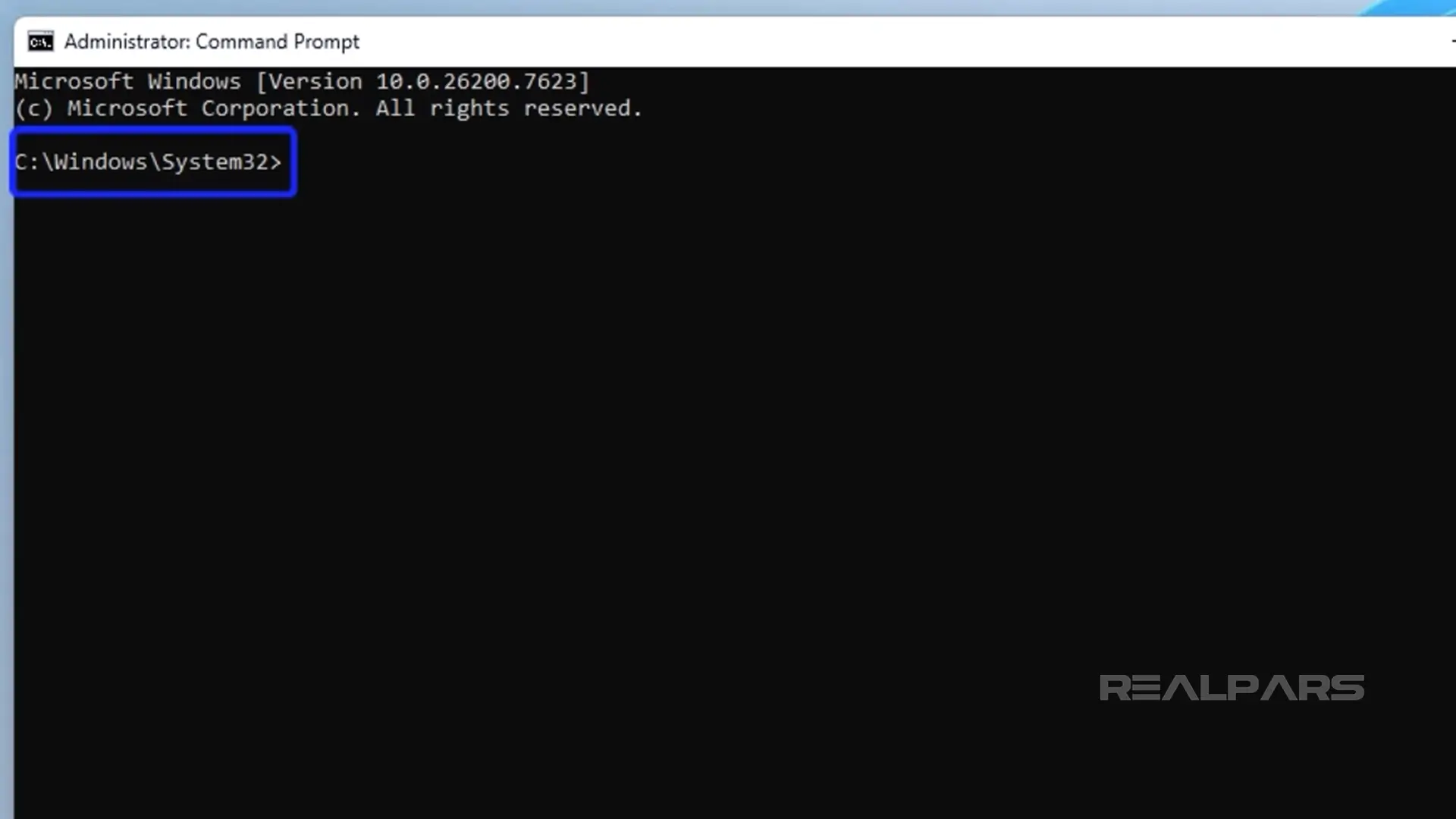
Moving from right to left, System32 is a subfolder of the Windows folder on the root of Drive C. Notice the forward slash that separates folders and the root drive.
You can get to the same place using Windows File Explorer.
Click on File Explorer and go to the C drive. Scroll down until you find the Windows Folder. Expand the Windows folder, then scroll down until you find the System32 folder.
Now it's a simple matter of opening the folder to see its contents; you will find several subfolders.
Now we’ll find these subfolders using the Command Prompt.
Alright, let's go back to the command prompt screen.
We can see what’s inside the System32 folder by typing dir and pressing Enter.
The result is a listing, or directory, of all the subfolders and files in the System32 folder.
You should see similarities between the Windows folders and the CMD prompt's directory.
As we mentioned earlier, correct syntax is essential because errors are unforgiving. One saving grace is that syntax is not case-sensitive.
The command line structure is: COMMAND [options] [parameters]
We’ve already used the Dir command to list files and directories in the current directory.
Directory navigation is straightforward.
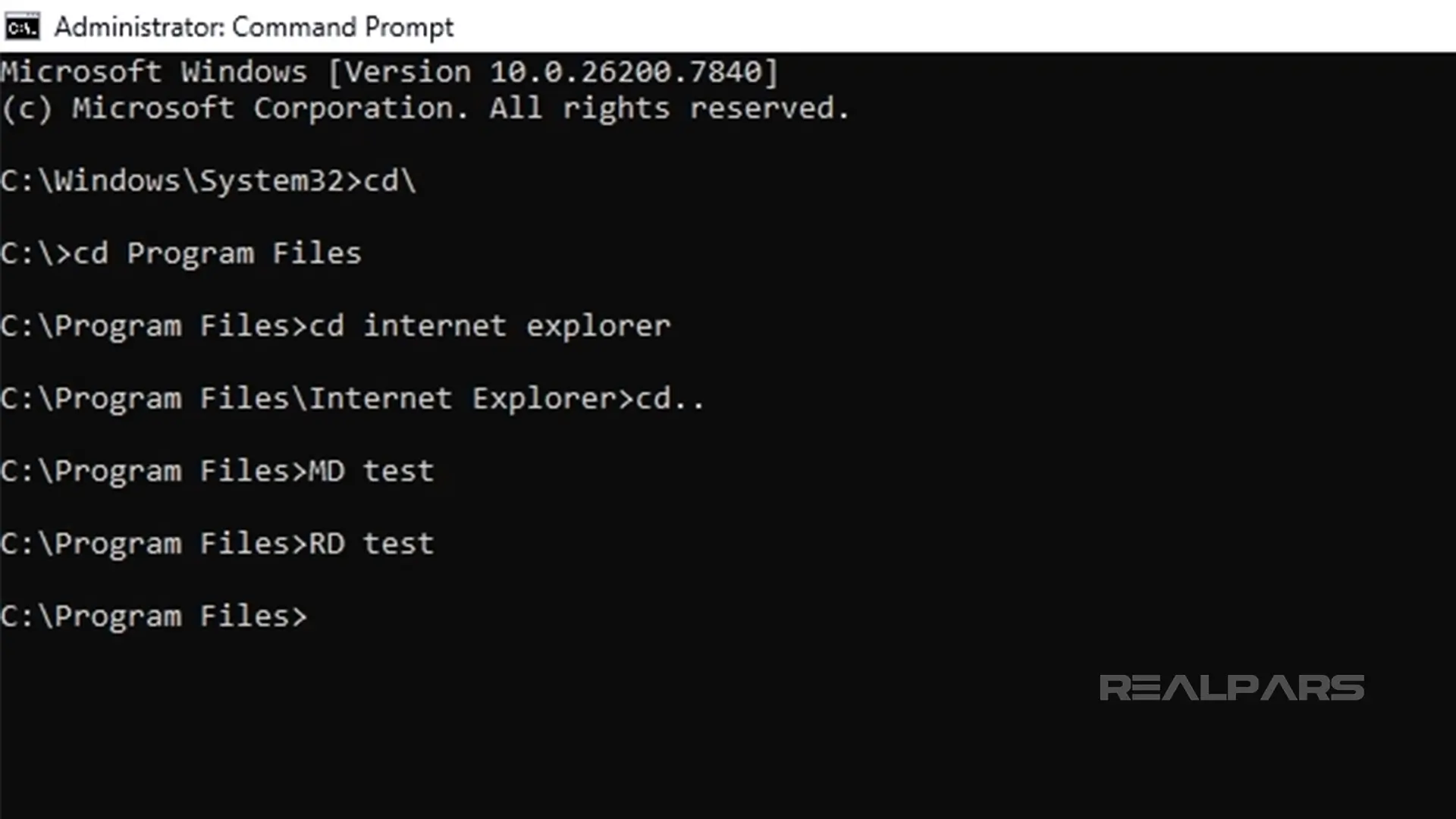
Let’s go back to the opening screen and enter cd\. This takes us to the root of the current directory.
Entering cd program files with the correct spacing will take us to the Program Files directory.
Drilling further, entering cd internet explorer takes us to the Internet Explorer directory (folder).
We can go back one folder by entering cd...
We are now back in the Program Files folder.
Here’s more for you to experiment with.
You can make a new directory by entering MD folder name.
You can remove a directory by entering RD folder name. Be careful with that one!
Installing Mosquitto MQTT broker
Let’s walk through the steps to install the Mosquitto MQTT broker on your computer. Mosquitto doesn’t run on Windows, so we need to be familiar with DOS commands using the Command Prompt.
We will use the mosquito.org website.
In the download section of the website, click on mosquitto-2.1.1-istall-windows-x64.exe under Windows.
Once downloaded, click the download icon to open the installation file.
Click on the file and follow the installation instructions.
Mosquitto directory
Now that Mosquitto has been installed, let's locate it using the command prompt.
The Mosquitto directory is located in the Program Files Directory.
We will see the Mosquitto directory in that list.
We can view the directory contents by entering dir.
Publish/Subscribe example
While we’re here, let’s run a Publish/Subscribe sequence to test our Mosquitto broker.
We will create a command that publishes an MQTT message to a broker using the Mosquitto MQTT client.
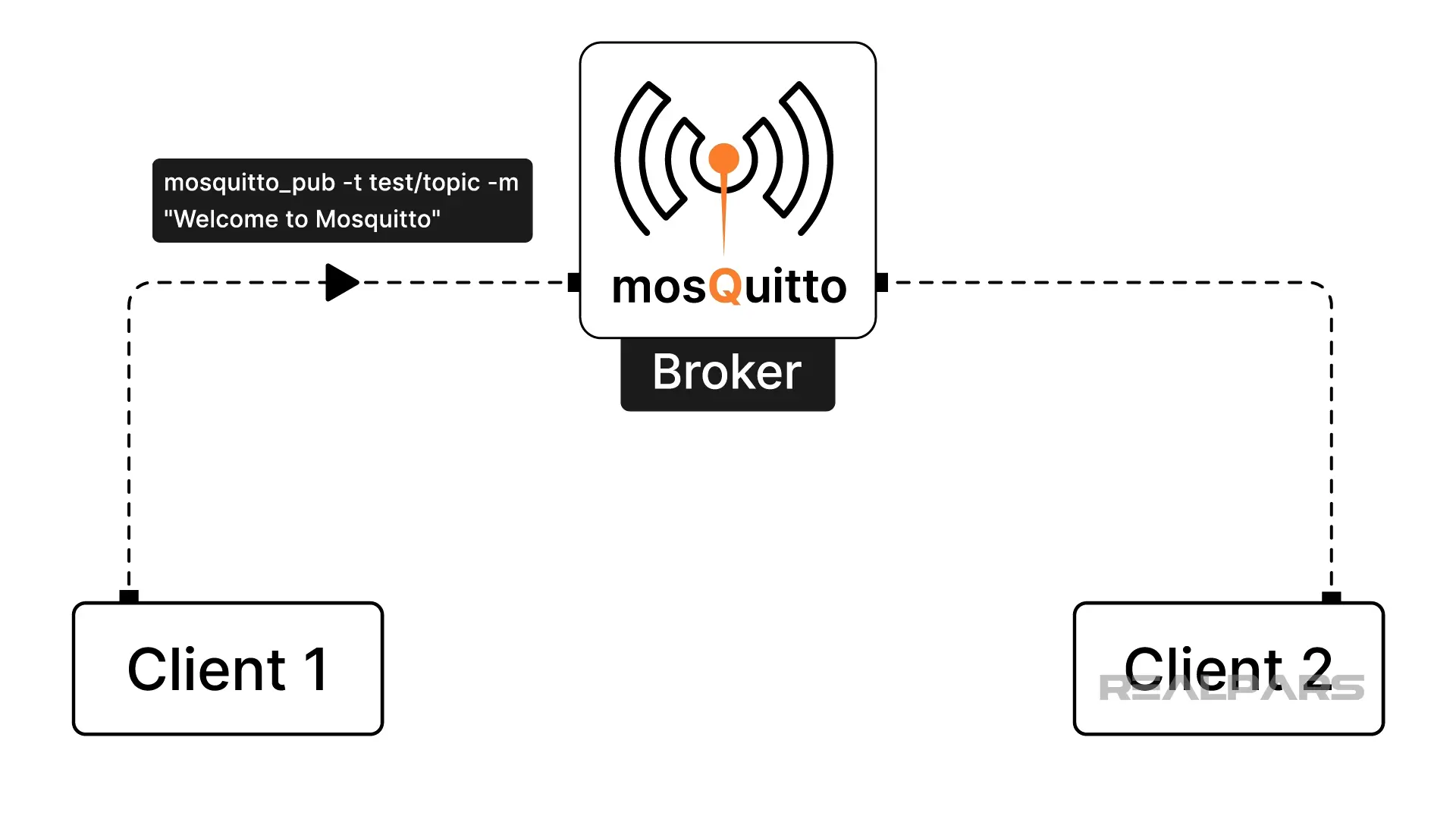
Any MQTT client subscribed to the published topic will receive the message immediately.
We’ve stepped up our game a bit because we’re going to run DOS/CMD/PowerShell command-line programs that aren’t basic DOS.
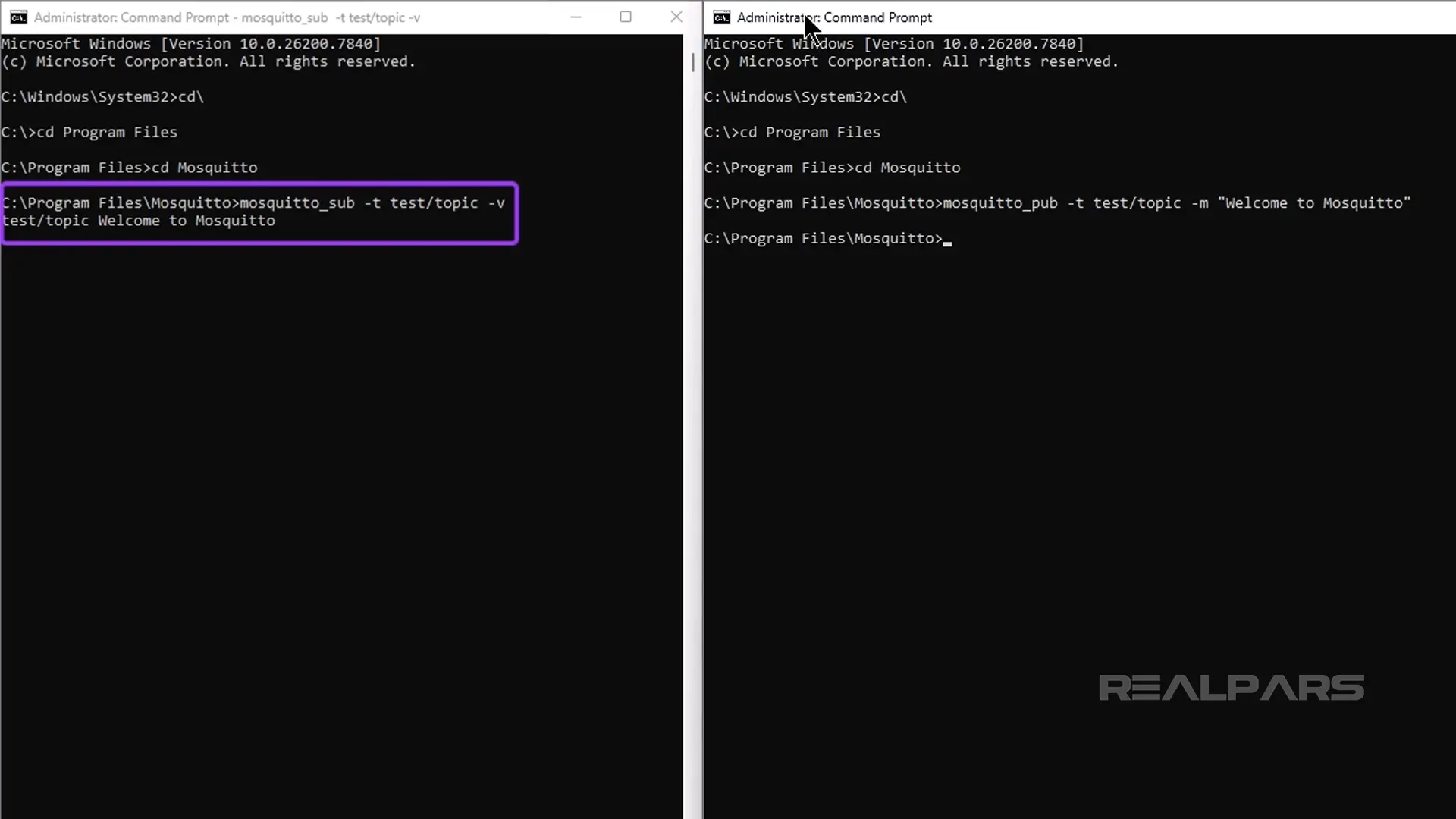
First, we need to open two Command Prompt windows. One is for Subscribe, and the other is for Publish.
Now we use our command prompt skills to set each window to the Mosquito directory.
In the first window, enter mosquitto_sub -t test/topic -v .
In the second window, enter mosquitto_pub -t test/topic -m "Welcome to Mosquitto" .
Return to the first CMD window where we entered the subscribe command, and you will see your message Welcome to Mosquitto in the subscriber window.
Conclusion
That’s it for this article!
DOS may not be boss as it once was, but it is still relevant in today's IoT world.

